# Introduction

A brief introduction into the oneroute.io platform

What is oneroute.io?

OneRoute  is a business messaging platform that connects your customers from any channel to every teammate. The platform allows customers to message you via any Channel and provides an all inclusive view of all teammates in the company.

We want to help you better manage your Customers and conversations from various Channels and make it easier for you and your team to respond to your Customers in a more efficient way. The platform also enables collaboration with your teammates.

**Features**

**Shared Inbox**

A shared inbox allows you to collaborate with your teammates and respond to your Customers with swiftness. This way, you and your teammates can co-operate on conversations and deliver amazing customer experiences, faster.

**OmniChannel Dashboard**

With OneRoute, there's no more logging in to multiple platforms — find all your customer chats in one place. No matter the Channel, you are able to find a single story for every customer. Custom Fields and Tags also make it easier to segment your customers.

**Chat Automation**

Less work, more messages for a more productive workforce. Create Template Messages, Auto Responders and Saved Responses to help your teammates better manage their efforts in resolving customer issues.

Try It Out!

The best way to discover the platform is to try it out yourself. Whether you are thinking of connecting a business messaging app to the platform or creating a web chat widget from scratch, **get started** with the following guide. No credit card required!

<br>


# Setting Up An Account

Step 1: Navigate to the Sign Up page

Click [here](https://app.oneroute.io/sign-up) to be navigated to the sign up page

Step 2: Fill in the required information

Provide your first name, last name, company name, work email and password. Note that your password must be at least 6 characters long.

<figure><img src="https://3509841690-files.gitbook.io/~/files/v0/b/gitbook-x-prod.appspot.com/o/spaces%2FWlKwbhiQmQ3D9zFOVWlI%2Fuploads%2Fmh2MitLxQNQ77X6snsTi%2Fsign%20up.png?alt=media&amp;token=05a435bd-d622-4349-8d7d-91cea81b6485" alt=""><figcaption></figcaption></figure>

Step 3: Submit

Once you have filled in the form, press the blue create account button. If there is no error, you should be prompted to check your email to activate your account.

<figure><img src="https://3509841690-files.gitbook.io/~/files/v0/b/gitbook-x-prod.appspot.com/o/spaces%2FWlKwbhiQmQ3D9zFOVWlI%2Fuploads%2FWp2jgoFc6W6CnPk46yLL%2Fverify.png?alt=media&amp;token=f246e26c-d649-4f35-95a4-31da23de7033" alt=""><figcaption></figcaption></figure>

Step 4: Verify your email address

You should receive an email from oneroute.io to complete the verification. Proceed to verify your email by clicking the **confirm email** button in the email.

<figure><img src="https://3509841690-files.gitbook.io/~/files/v0/b/gitbook-x-prod.appspot.com/o/spaces%2FWlKwbhiQmQ3D9zFOVWlI%2Fuploads%2Fmmy0bU086ZpyuHhOoSzm%2Fsignup%20email%20verify.png?alt=media&amp;token=14ab2884-92e1-4538-be65-5440ffa6258c" alt=""><figcaption></figcaption></figure>

Step 5: Sign in


# Connecting Channels

Now that you have created the account, you are one step closer to setting up the platform. Let's connect your Channels to the platform to start interacting with your Customers.

**Connect a channel**

Navigate to Settings > Channels > Click on ADD AN ACCOUNT for the channel you want to connect.

<figure><img src="https://3509841690-files.gitbook.io/~/files/v0/b/gitbook-x-prod.appspot.com/o/spaces%2FWlKwbhiQmQ3D9zFOVWlI%2Fuploads%2FJfCmawLeNprCIOeQEr4y%2Fscreenbud-f27521c4-cd53-4459-8f0e-a1cfe8f8daa3.png?alt=media&amp;token=a6fd4745-6c0c-4329-bccd-cac46b822ae2" alt=""><figcaption></figcaption></figure>

Every Channel requires a different method of configuration. Therefore, we have prepared step-by-step instructions for Users to follow.


# WhatsApp

Requirements and steps to connecting your WhatsApp channel

**Requirements**

1. **Meta Business Manager Account**

If you don't already have one, ensure you have a [Meta Business Manager Account](https://web.facebook.com/business/help/1612355968988019?_rdc=1&_rdr).

2. **WhatsApp Phone Number**

To get a WhatsApp API Account, you will need a phone number.&#x20;

* The phone number used for WhatsApp Business API must be valid (can send and receive SMS).
* If you want to use a number connected to your personal WhatsApp or WhatsApp Business App, you must first delete your account. Learn how to migrate from WhatsApp personal or WhatsApp Business App [here](https://faq.whatsapp.com/2138577903196467/?cms_platform=android).

3. **WhatsApp Commerce Policy**

Ensure that the nature of your business and the products that you sell comply with [WhatsApp Commerce Policy](https://www.whatsapp.com/legal/commerce-policy).

4. **WhatsApp Business Policy**

It’s important to be aware of [WhatsApp Business Policy](https://www.whatsapp.com/legal/business-policy) and follow these messaging best practices to avoid getting flagged.

5. **Grant Access to Meta Business Manager**

To connect WhatsApp to OneRoute, grant Full Access to <tiffany@oneroute.io>. Here's how to [invite an email address](https://web.facebook.com/business/help/2169003770027706?_rdc=1&_rdr\&wtsid=rdr_0idrbB5NQzClNEE69) to your account. This access should be revoked once your WhatsApp channel is added to your OneRoute account.

**Limitations**

**WhatsApp Groups**

Group Messages are not supported by WhatsApp Business API. Facebook has deprecated the development of this feature.

**Voice Calls**

WhatsApp calls are not supported by WhatsApp Business API.


# Facebook Messenger

To chat with your customers over Facebook Messenger, connect to a Facebook Page.

**Step 1: Navigate to Channel Settings**&#x20;

From **Settings** module, navigate to the menu item, **Channels**.

**Step 2: Add Channel**

Click **Add Channel** under **Facebook** **Messenger**. Click **Next** and the **Connecting Facebook Messenger** dialog should open up.

**Step 3: Connect with Facebook**

Click the **Connect With Facebook** button.

<figure><img src="https://3509841690-files.gitbook.io/~/files/v0/b/gitbook-x-prod.appspot.com/o/spaces%2FWlKwbhiQmQ3D9zFOVWlI%2Fuploads%2FCG2JBPGwUmGeCvcSpX6E%2Fscreenbud-a26c59e0-e368-49ec-9409-39e29bfc7aee.png?alt=media&amp;token=24032021-9f8d-4936-a01f-b9d3a0655aac" alt=""><figcaption></figcaption></figure>

**Step 4: Sign in with a Facebook Account**

Sign in using the Facebook account with admin access to the page you would like to connect to.

<figure><img src="https://3509841690-files.gitbook.io/~/files/v0/b/gitbook-x-prod.appspot.com/o/spaces%2FWlKwbhiQmQ3D9zFOVWlI%2Fuploads%2FzSLkKTTuSwXrNdT8fxHW%2Fscreenbud-6ea6bb1d-3c2a-4784-a693-324f4d479089.png?alt=media&amp;token=02afdff1-6d8b-4861-87ac-3a0037f675e8" alt=""><figcaption></figcaption></figure>

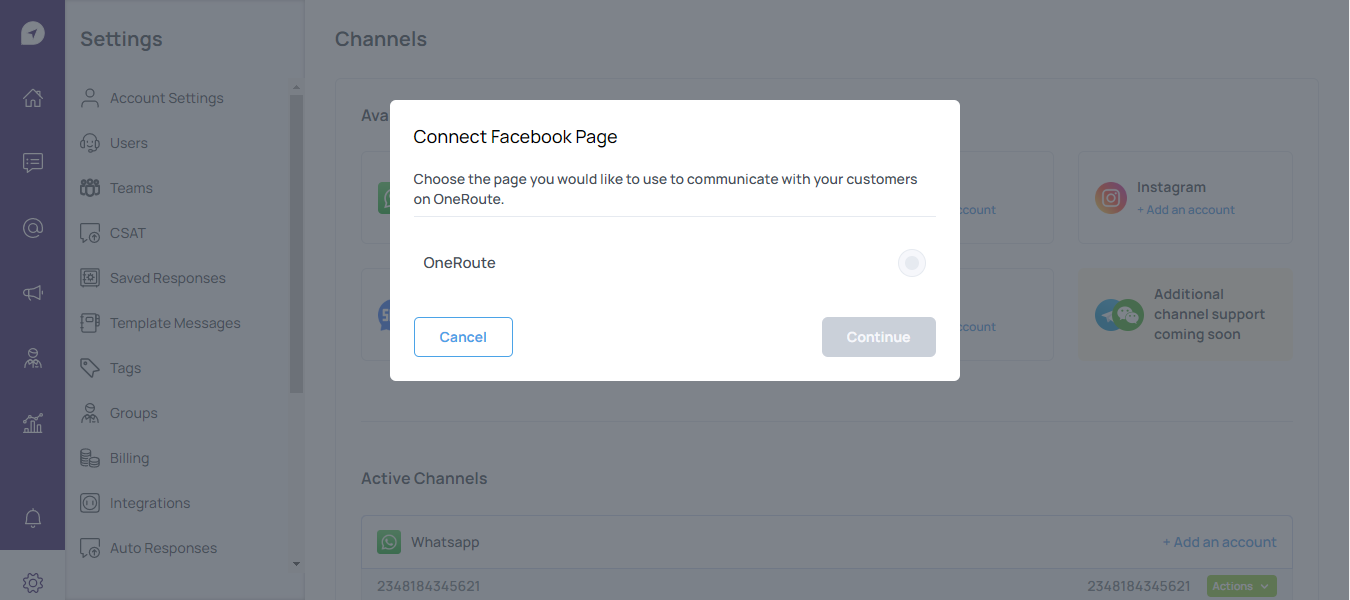
**Step 5: Select the Facebook Page**

You will be provided options on which page you would like to connect. Select the page.

<figure><img src="https://3509841690-files.gitbook.io/~/files/v0/b/gitbook-x-prod.appspot.com/o/spaces%2FWlKwbhiQmQ3D9zFOVWlI%2Fuploads%2FeLNVORT3eoNLiU5gWw3E%2Fscreenbud-7277861a-1586-4691-8792-252009b13073.png?alt=media&amp;token=12ec150f-f4a2-4e05-9845-48455363d432" alt=""><figcaption></figcaption></figure>

**Step 6: Complete the setup at oneroute.io**

Click **Dismiss** to complete the setup.&#x20;

<figure><img src="https://3509841690-files.gitbook.io/~/files/v0/b/gitbook-x-prod.appspot.com/o/spaces%2FWlKwbhiQmQ3D9zFOVWlI%2Fuploads%2Fws0BpNwSFsDMPIuNbyCj%2Fscreenbud-a0c3f42f-e4cc-4a5e-87b8-14002d2ca503.png?alt=media&amp;token=296383d9-59ed-4fca-a62c-9ef5ddac2df0" alt=""><figcaption></figcaption></figure>


# Instagram

To chat with your customers over Instagram, connect to an Instagram Page. Ensure that your Instagram page is is a [Business Account](https://help.instagram.com/502981923235522?fbclid=IwAR2_w-Ab0Ffo0etcZmP5gMfk70mIEODAr9prOnbbEMDZ_8LIOUCzu55NrRc) and that it's [linked to your Facebook](https://help.instagram.com/176235449218188)

**Step 1: Navigate to Channel Settings**&#x20;

From **Settings** module, navigate to the menu item, **Channels**.

**Step 2: Add Channel**

Click **Add Channel** under **Instagram**. You will be provided a list of requirements for setting up Instagram, Click **Continue** and the **Connect with Facebook** dialog should open up.

<figure><img src="https://3509841690-files.gitbook.io/~/files/v0/b/gitbook-x-prod.appspot.com/o/spaces%2FWlKwbhiQmQ3D9zFOVWlI%2Fuploads%2F4qBkei7CiUukmziooHN2%2Fscreenbud-b611c776-2b49-44eb-aeb4-7741fd2cc599.png?alt=media&amp;token=985a2613-97c5-41a8-a5ac-e56d41aa027a" alt=""><figcaption></figcaption></figure>

**Step 3: Connect with Facebook**

Click the **Connect With Facebook** button.

<figure><img src="https://3509841690-files.gitbook.io/~/files/v0/b/gitbook-x-prod.appspot.com/o/spaces%2FWlKwbhiQmQ3D9zFOVWlI%2Fuploads%2Fj25S5VbUmBwzV8LjjgGH%2Fscreenbud-de5af085-691f-4c3f-89df-8b9b16797577.png?alt=media&amp;token=e21bb1f5-79e8-4d92-b61f-413c4ea72341" alt=""><figcaption></figcaption></figure>

**Step 4: Sign in with a Facebook Account**

Sign in using the Facebook account with admin access to the page you would like to connect to. If you have previously linked your Facebook Business Account, you'll be directed to continue with that account.

<figure><img src="https://3509841690-files.gitbook.io/~/files/v0/b/gitbook-x-prod.appspot.com/o/spaces%2FWlKwbhiQmQ3D9zFOVWlI%2Fuploads%2F9y6p92TnDryF5YlRClR2%2Fscreenbud-a086a04b-badb-4c18-889a-ed9ed7a3ab81.png?alt=media&amp;token=035406fe-22f7-460d-a8d8-f130d8ee90fc" alt=""><figcaption></figcaption></figure>

**Step 5: Select the Instagram Page**

You will be provided options on which page you would like to connect. Select the page.

<figure><img src="https://3509841690-files.gitbook.io/~/files/v0/b/gitbook-x-prod.appspot.com/o/spaces%2FWlKwbhiQmQ3D9zFOVWlI%2Fuploads%2FeBoA5WgF9WUjj8CTPnHg%2Fscreenbud-86b9eb49-c41b-4145-adf4-d9371a986e36.png?alt=media&amp;token=7f0501e5-3cd6-4b4d-8be0-eff279a3befe" alt=""><figcaption></figcaption></figure>

**Step 6: Complete the setup**&#x20;

Click Complete, you'll be provided with instructions on how to allow OneRoute access to your Instagram messages. Follow the steps, then click **I have completed** **this** then **Dismiss** to complete the setup.&#x20;

<figure><img src="https://3509841690-files.gitbook.io/~/files/v0/b/gitbook-x-prod.appspot.com/o/spaces%2FWlKwbhiQmQ3D9zFOVWlI%2Fuploads%2FJYqlzViCCYVYtet3Fiyk%2Fscreenbud-e49837f5-aac0-4339-a15d-f5018594f763.png?alt=media&amp;token=f40edeec-51a7-411a-bf97-321468eb42b5" alt=""><figcaption></figcaption></figure>

<figure><img src="https://3509841690-files.gitbook.io/~/files/v0/b/gitbook-x-prod.appspot.com/o/spaces%2FWlKwbhiQmQ3D9zFOVWlI%2Fuploads%2F3j207amC0PGAj6enJN94%2Fscreenbud-8d2599df-c04e-4544-939d-ec588fbf124a.png?alt=media&amp;token=01b6383a-cfe5-4426-8ed0-3883e52f05f0" alt=""><figcaption></figcaption></figure>


# Twitter

To chat with your customers over Twitter mentions and DMs, connect to a Twitter Account.

**Step 1: Navigate to Channel Settings**&#x20;

From **Settings** module, navigate to the menu item, **Channels**.

**Step 2: Add Channel**

Click **Add Channel** under **Twitter**. Click **Next** and the **Connecting Twitter** dialog should open up.

**Step 3: Connect with Twitter**

Click the **Connect With Twitter** button.

**Step 4: Sign in with a Twitter Account**

Sign in using the Twitter account you would like to connect to and authorize application, click on **Authorize App.**

<figure><img src="https://3509841690-files.gitbook.io/~/files/v0/b/gitbook-x-prod.appspot.com/o/spaces%2FWlKwbhiQmQ3D9zFOVWlI%2Fuploads%2FmtLw5UbkDOiZs2Mo7aAH%2Fscreenbud-7d3247c9-10f1-4c66-ab72-96e62bb8d025.png?alt=media&amp;token=05e5a14e-819f-42d1-8c62-f0d8937335fd" alt=""><figcaption></figcaption></figure>

**Step 5: Complete the Setup**

You will be redirected to OneRoute. Click **Dismiss** to complete setup.

<figure><img src="https://3509841690-files.gitbook.io/~/files/v0/b/gitbook-x-prod.appspot.com/o/spaces%2FWlKwbhiQmQ3D9zFOVWlI%2Fuploads%2FSU59TBmddVOSa1Dh2WlM%2Fscreenbud-7bdb6f09-08db-46a6-8b48-133f747d7b79.png?alt=media&amp;token=94c28818-7205-460e-8a84-a452b8315f58" alt=""><figcaption></figcaption></figure>


# Email

To communicate with your customers over Email, connect to a mailbox.

**Step 1: Navigate to Channel Settings**&#x20;

From **Settings** module, navigate to the menu item, **Channels**.

**Step 2: Add Channel**

Click **Add Channel** under **Email**.&#x20;

**Step 3: Setup OneRoute Email Address**

Fill in an email prefix in the space provided. This is where your emails will be forwarded to for access via the platform. If the prefix is available, click on **continue.** An email address will be created. Copy the email and click Next Step.

<figure><img src="https://3509841690-files.gitbook.io/~/files/v0/b/gitbook-x-prod.appspot.com/o/spaces%2FWlKwbhiQmQ3D9zFOVWlI%2Fuploads%2FrNDy18xSLCObuLywQ9MP%2Fscreenbud-ae707b0e-34ac-4a11-8294-e5706db1970e.png?alt=media&amp;token=9da0aef6-2fa4-4827-83bf-6a84fdab3a95" alt=""><figcaption></figcaption></figure>

<figure><img src="https://3509841690-files.gitbook.io/~/files/v0/b/gitbook-x-prod.appspot.com/o/spaces%2FWlKwbhiQmQ3D9zFOVWlI%2Fuploads%2Fa7lZE2E6nyjaPeXWS5GP%2Fscreenbud-3ed01151-37a0-4e81-ae27-cda42278f803.png?alt=media&amp;token=9f3945a4-2137-4638-8f27-0cfa776c27ca" alt=""><figcaption></figcaption></figure>

**Step 4: Setup Email Forwarding**

&#x20;Enter the email you want to forward emails from, select a provider and click Submit.&#x20;

<figure><img src="https://3509841690-files.gitbook.io/~/files/v0/b/gitbook-x-prod.appspot.com/o/spaces%2FWlKwbhiQmQ3D9zFOVWlI%2Fuploads%2FVa0mttceb917JuOxkcAp%2Fscreenbud-0ad7ae7a-a30e-451c-ba55-0e1e66bdbaf6.png?alt=media&amp;token=39205712-bc9e-4f6a-8806-db637de2c9d1" alt=""><figcaption></figcaption></figure>

Setup email forwarding in your current mailbox, return to OneRoute and click I have setup email forwarding.

<figure><img src="https://3509841690-files.gitbook.io/~/files/v0/b/gitbook-x-prod.appspot.com/o/spaces%2FWlKwbhiQmQ3D9zFOVWlI%2Fuploads%2FZ9D0fi7iOmhvmwUfYx1E%2Fscreenbud-7fd57295-632b-4006-90a6-2111222d7c49.png?alt=media&amp;token=9b1fcfec-5e5c-4736-9971-e068df9b9486" alt=""><figcaption></figcaption></figure>

**Step 5: Complete the Setup**

You will be redirected to OneRoute. Click **Dismiss** to complete setup.


# SMS

To chat with your customers over SMS, setup your SMS sender.&#x20;

Please note that your SMS sender ID should be registered with the Telcos either on the Promotional or Transactional route. If it is not registered, either of the default senders **OneAlert** or **verify** will be used to send SMS.

**Step 1: Navigate to Channel Settings**&#x20;

From **Settings** module, navigate to the menu item, **Channels**.

**Step 2: Add Channel**

Click **Add Channel** under **SMS**.

**Step 3: Complete setup**

Input the sender name, click **Proceed** then **Dismiss** to complete setup.

<figure><img src="https://3509841690-files.gitbook.io/~/files/v0/b/gitbook-x-prod.appspot.com/o/spaces%2FWlKwbhiQmQ3D9zFOVWlI%2Fuploads%2FMLXa91OJjdXm4mjYH6Hi%2Fscreenbud-2be8fc32-e557-4f1d-8d75-3bcd32dd30d2.png?alt=media&amp;token=ebc28dc8-568d-4c0c-b3c6-b98a224bf1cd" alt=""><figcaption></figcaption></figure>

<figure><img src="https://3509841690-files.gitbook.io/~/files/v0/b/gitbook-x-prod.appspot.com/o/spaces%2FWlKwbhiQmQ3D9zFOVWlI%2Fuploads%2F1dQhUdnRGQbv0gfZIgL5%2Fscreenbud-960a52e6-f363-48eb-84ef-a7c23aaa00fa.png?alt=media&amp;token=450b33e5-8a99-4809-9d31-a780b3f4d5bb" alt=""><figcaption></figcaption></figure>


# Livechat

To chat with your customers over Livechat

**Step 1: Navigate to Channel Settings**&#x20;

From **Settings** module, navigate to the menu item, **Channels**.

**Step 2: Add Channel**

Click **Add Channel** under **Livechat**.

**Step 3: Complete setup**

Type in your preferred widget name and click **Proceed**

<figure><img src="https://3509841690-files.gitbook.io/~/files/v0/b/gitbook-x-prod.appspot.com/o/spaces%2FWlKwbhiQmQ3D9zFOVWlI%2Fuploads%2FkDZLZ7sQxzjLyFBTGJbx%2Fscreenbud-37d451d3-43e8-492a-952f-927cb4feacc0.png?alt=media&amp;token=f084c31d-887a-4b7f-bc76-9c42761d0e2e" alt=""><figcaption></figcaption></figure>

<figure><img src="https://3509841690-files.gitbook.io/~/files/v0/b/gitbook-x-prod.appspot.com/o/spaces%2FWlKwbhiQmQ3D9zFOVWlI%2Fuploads%2FSIkrWB9OjH30tIIVV8lw%2Fscreenbud-af8a8580-b74a-4d8b-b951-4603b1f9f51d.png?alt=media&amp;token=1145c358-8094-4353-a900-414a71645e61" alt=""><figcaption></figcaption></figure>


# Inviting Users

Inviting Your Teammates

#### **Step 1: Navigate to Users Settings** <a href="#step_1_navigate_to_users_settings" id="step_1_navigate_to_users_settings"></a>

You can access the Users settings by navigating to Settings >Users.

<figure><img src="https://3509841690-files.gitbook.io/~/files/v0/b/gitbook-x-prod.appspot.com/o/spaces%2FWlKwbhiQmQ3D9zFOVWlI%2Fuploads%2FWY2XUU9cgVmkPZdmtQsq%2Fscreenbud-93a4110c-4d14-4db9-8fec-8ec50ae09ec2.png?alt=media&amp;token=b372e207-3dda-401e-b945-eea6a74d5c51" alt=""><figcaption></figcaption></figure>

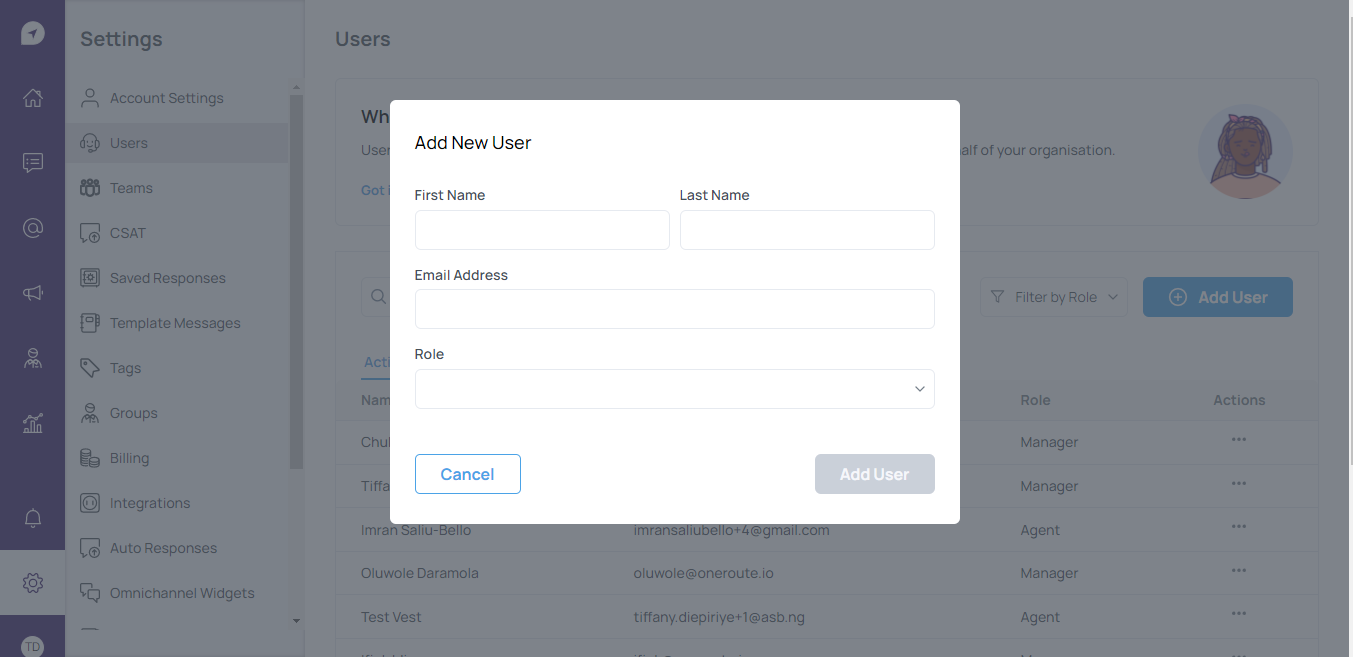
#### **Step 2: Add a User** <a href="#step_2_add_a_user" id="step_2_add_a_user"></a>

Click **Add User** to add your teammate to the Account. You may invite your teammate using their name, email address and specify an appropriate access level for them.

<figure><img src="https://3509841690-files.gitbook.io/~/files/v0/b/gitbook-x-prod.appspot.com/o/spaces%2FWlKwbhiQmQ3D9zFOVWlI%2Fuploads%2F05q7VRepTToO4hjOmpe2%2Fscreenbud-7f37db1a-11f1-4834-8d62-4cedd54be071.png?alt=media&amp;token=f5b1306a-8e97-4439-b64e-5e4576e77149" alt=""><figcaption></figcaption></figure>

An email invitation will be sent to the newly-added User and they will be prompted to join your account by setting up their password via the Click Here to Login link.

#### **Step 3: Group Users in Teams** <a href="#step_3_group_users_in_teams" id="step_3_group_users_in_teams"></a>

When Users accept your invitation, you may create Teams to group your Users for better visibility. Learn more on how to manage [Teams here](broken://pages/wVwvKfSAUQzoa34XoRuo).


# Responding to Messages

#### Conversations Module <a href="#messages_module" id="messages_module"></a>

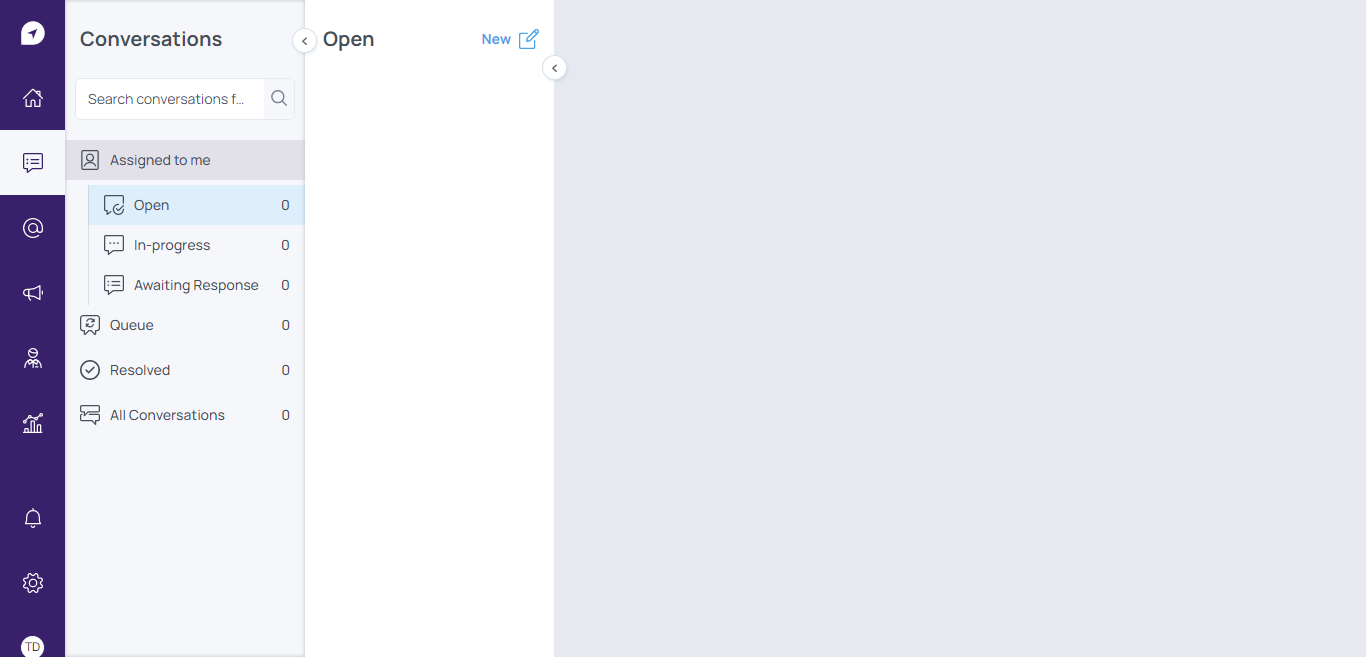
The Conversations Module is where you can view all conversations with your Customers and interact with them when necessary. You can access this module from the left navigation menu.

<figure><img src="https://3509841690-files.gitbook.io/~/files/v0/b/gitbook-x-prod.appspot.com/o/spaces%2FWlKwbhiQmQ3D9zFOVWlI%2Fuploads%2FeCVYcmlBTZsogxxuScEy%2Fscreenbud-53e1b168-9609-4d59-975a-4abab7a658a9.png?alt=media&amp;token=59395cb4-fd44-4602-87a7-83fb610cd11b" alt=""><figcaption></figcaption></figure>

**Receiving New Messages**

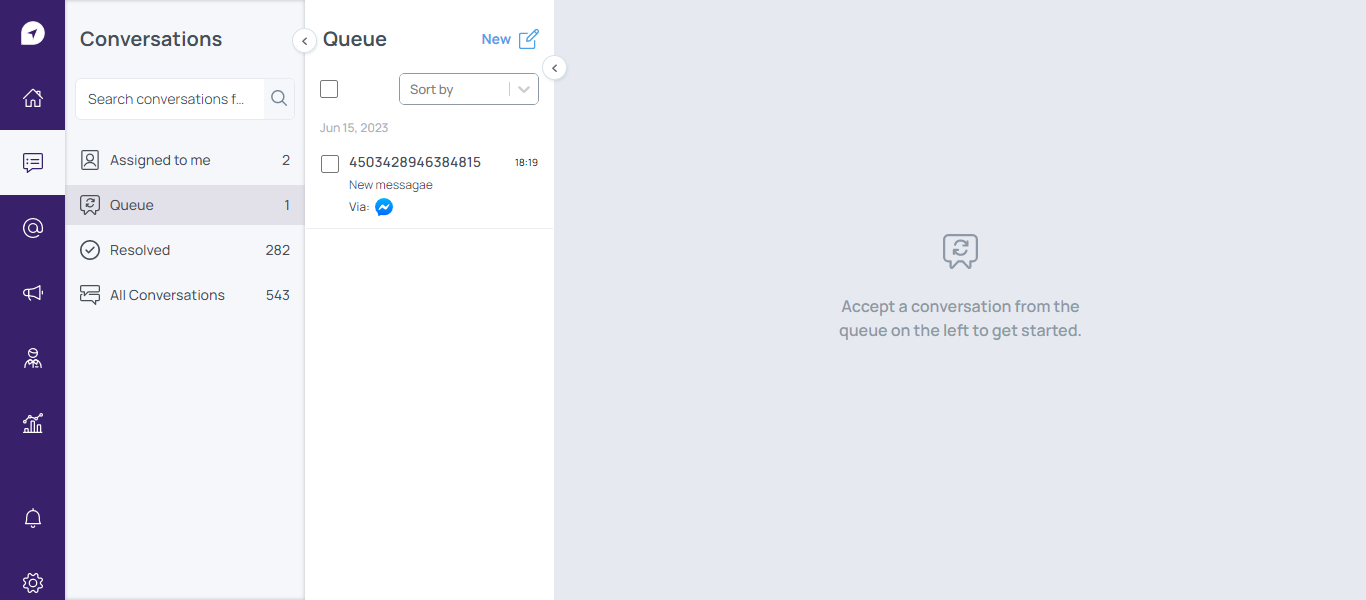
New messages will appear in the queue of the Conversations Module. New messages will be unassigned by default.

**Replying to a Contact**

When the platform receives messages from a new Contact, the Contact will have an open conversation in queue and is unassigned across all channels. There are two ways Users can respond to Contacts:&#x20;

**Accepting a Conversation**

Step 1: Navigate to the Conversations Module, click on Queue

<figure><img src="https://3509841690-files.gitbook.io/~/files/v0/b/gitbook-x-prod.appspot.com/o/spaces%2FWlKwbhiQmQ3D9zFOVWlI%2Fuploads%2FTlzd6J40FJb1aF9tQnel%2Fscreenbud-148a55c3-b65f-4c30-9fd8-a8b45df5fb3a.png?alt=media&amp;token=d7acff2f-13b7-4909-aa47-027c824164c2" alt=""><figcaption></figcaption></figure>

Step 2: Hover over a conversation and click **Accept**. The conversation will be assigned to you then you can proceed to chat with the customer.

<figure><img src="https://3509841690-files.gitbook.io/~/files/v0/b/gitbook-x-prod.appspot.com/o/spaces%2FWlKwbhiQmQ3D9zFOVWlI%2Fuploads%2FGJFwv4iQOURUyfJXC1HD%2Fscreenbud-75a96287-6a19-4531-96f8-9dd0d30eaa8c.png?alt=media&amp;token=67f30cf3-f8bc-4c19-8a80-8bf5b9ca66a0" alt=""><figcaption></figcaption></figure>

**Assigning a Conversation**

Step 1: Navigate to the Conversations Module, click on Queue

Step 2: Click on any conversation to open the chat box. Click Unassigned at the top left corner of the chat box.

<figure><img src="https://3509841690-files.gitbook.io/~/files/v0/b/gitbook-x-prod.appspot.com/o/spaces%2FWlKwbhiQmQ3D9zFOVWlI%2Fuploads%2FZQUOaRdWZPJVqKahoZkD%2Fscreenbud-2eeaac9b-8667-441a-8ea2-98b04840d126.png?alt=media&amp;token=05bae80d-bcfc-467f-a51a-51912a6a6965" alt=""><figcaption></figcaption></figure>

Step 3: Select the teammate you'd like to assign the conversation to. Please note that this role is only available to managers.


# Conversations

**WhatsApp Conversations**&#x20;

There are two (2) ways conversations can be initiated on the WhatsApp API. They are Client-initiated conversations and Business-Initiated conversations. As a business using the API, you can only initiate conversations on the WhatsApp channel using template messages.

**Template Messages**

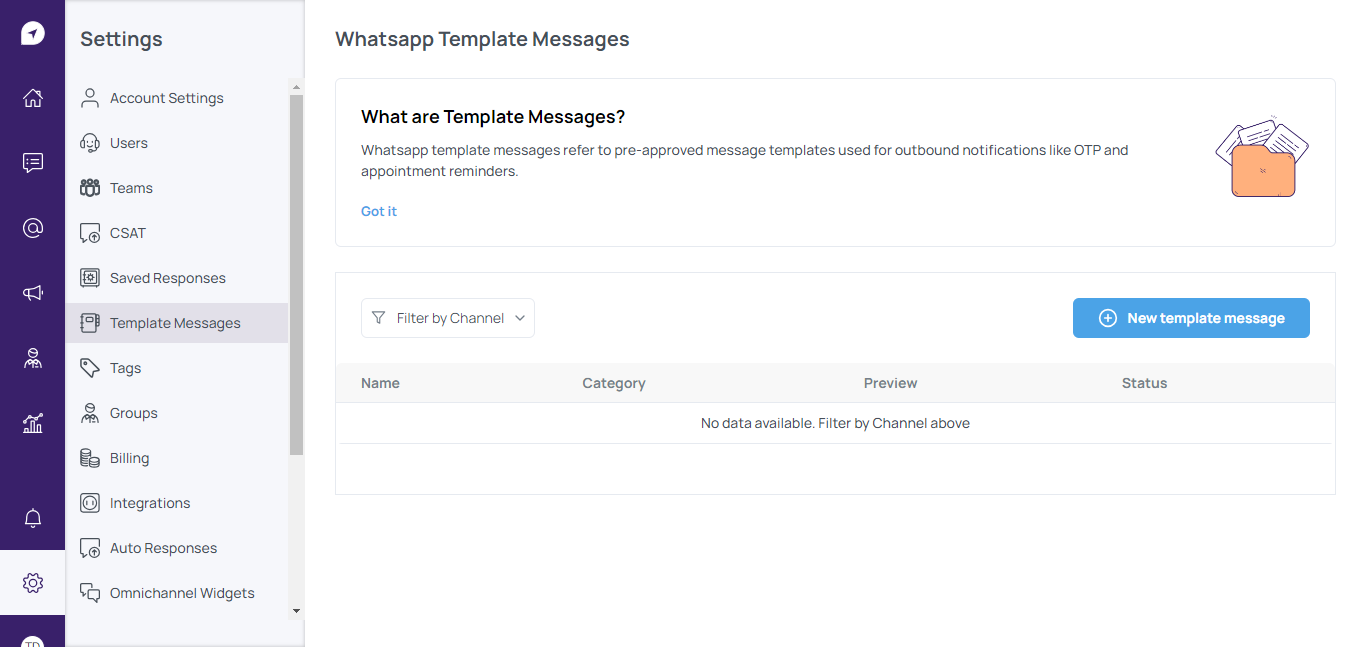
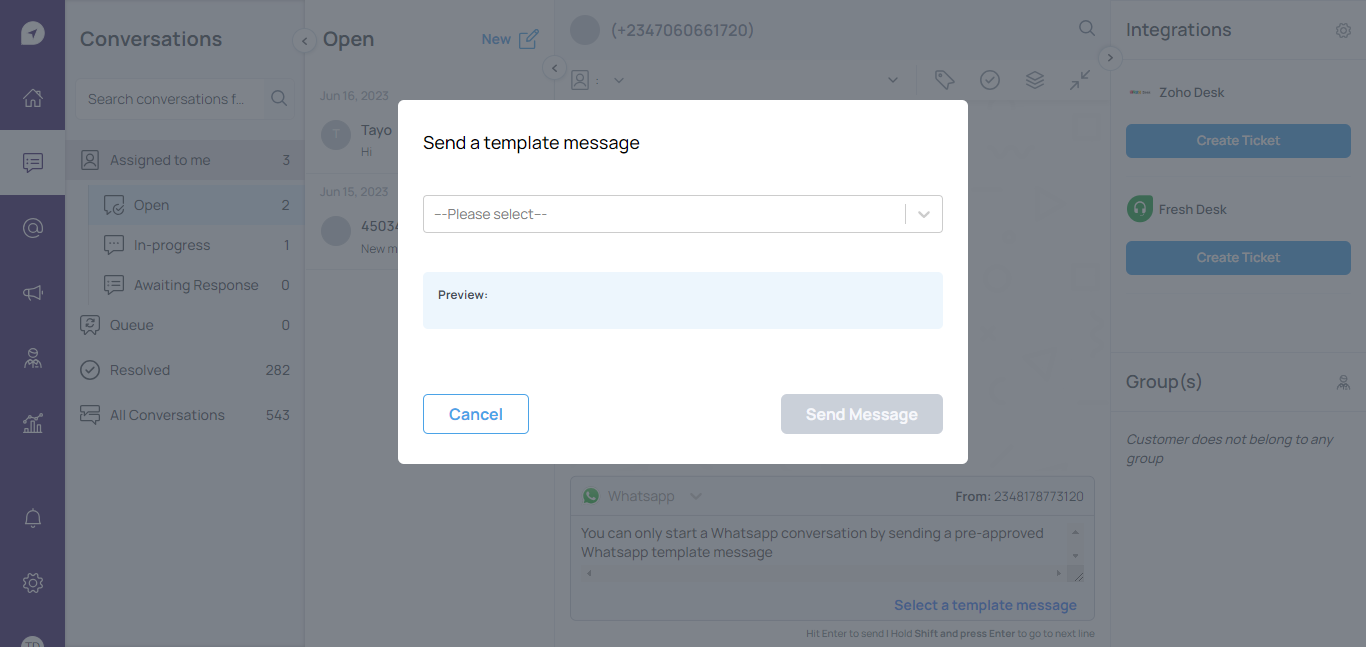
Template messages refer to pre-approved message templates used for outbound notifications like OTP and appointment reminders to customers. Unlike free-form messages, template messages are the only type of message that can be sent to customers who have yet to message you, or who have not sent you a message in the last 24 hours. These messages must be approved by WhatsApp. Approval can take anywhere from 1 minute to 24hours.

**Creating Template Messages**

Step 1: Navigate to Settings > Template Messages > click on new template message

<figure><img src="https://3509841690-files.gitbook.io/~/files/v0/b/gitbook-x-prod.appspot.com/o/spaces%2FWlKwbhiQmQ3D9zFOVWlI%2Fuploads%2FaQwGi8nmp3NQZtDm8OXe%2Fscreenbud-5a1b1fa3-3b43-45cb-b6e7-4142cb23fafb.png?alt=media&amp;token=e5b58469-c205-473f-ab75-ecf1f982fc07" alt=""><figcaption></figcaption></figure>

Step 2: Fill in the required information. Take note that the name of the template message must be in lowercase with underscore (\_) used as space

<figure><img src="https://3509841690-files.gitbook.io/~/files/v0/b/gitbook-x-prod.appspot.com/o/spaces%2FWlKwbhiQmQ3D9zFOVWlI%2Fuploads%2FjSE6YPGZwOOwDZQtBEWx%2Fscreenbud-e037b265-9cbe-442c-8e67-b7a145e8c6d7.png?alt=media&amp;token=0887dceb-91c6-4363-8771-d82019dfe393" alt=""><figcaption></figcaption></figure>

Step 3: After filling and selecting the right parameters, click submit for approval

Step 4: Check the template status bar to know when/if your template message was approved. It can take up to 24 hours for an approval decision to be made.

<figure><img src="https://3509841690-files.gitbook.io/~/files/v0/b/gitbook-x-prod.appspot.com/o/spaces%2FWlKwbhiQmQ3D9zFOVWlI%2Fuploads%2F9FCErRwW4vHwlbiVRHmN%2Fscreenbud-1cb13be0-893e-4f85-87ab-a6aaa79ebbca.png?alt=media&amp;token=de17c84b-cc24-4d51-9f3a-bd1a86aace59" alt=""><figcaption></figcaption></figure>

**Send Your First WhatsApp Messages**

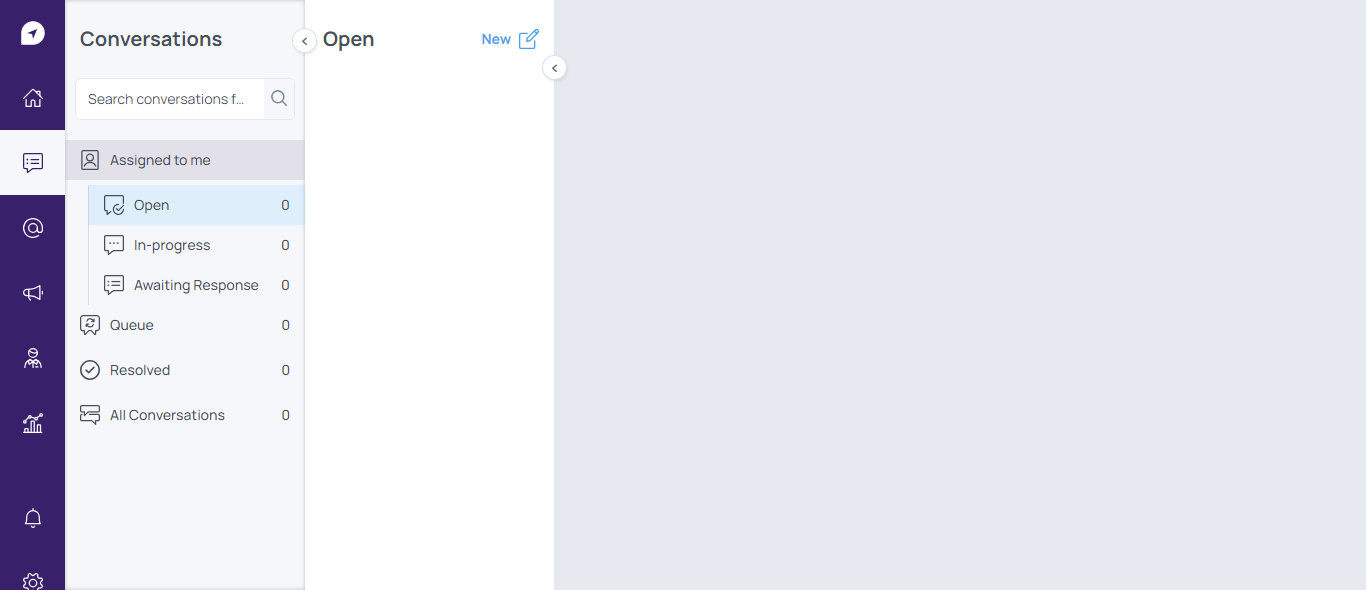
Step 1: Navigate to the Conversations Module > click New

<figure><img src="https://3509841690-files.gitbook.io/~/files/v0/b/gitbook-x-prod.appspot.com/o/spaces%2FWlKwbhiQmQ3D9zFOVWlI%2Fuploads%2F06OXemAoUcfjHduyXRXg%2Fscreenbud-5ef1de13-3c16-4d83-8ab4-19cf019ea515.png?alt=media&amp;token=b6e0b911-3888-4d61-9339-4d90e12e9d32" alt=""><figcaption></figcaption></figure>

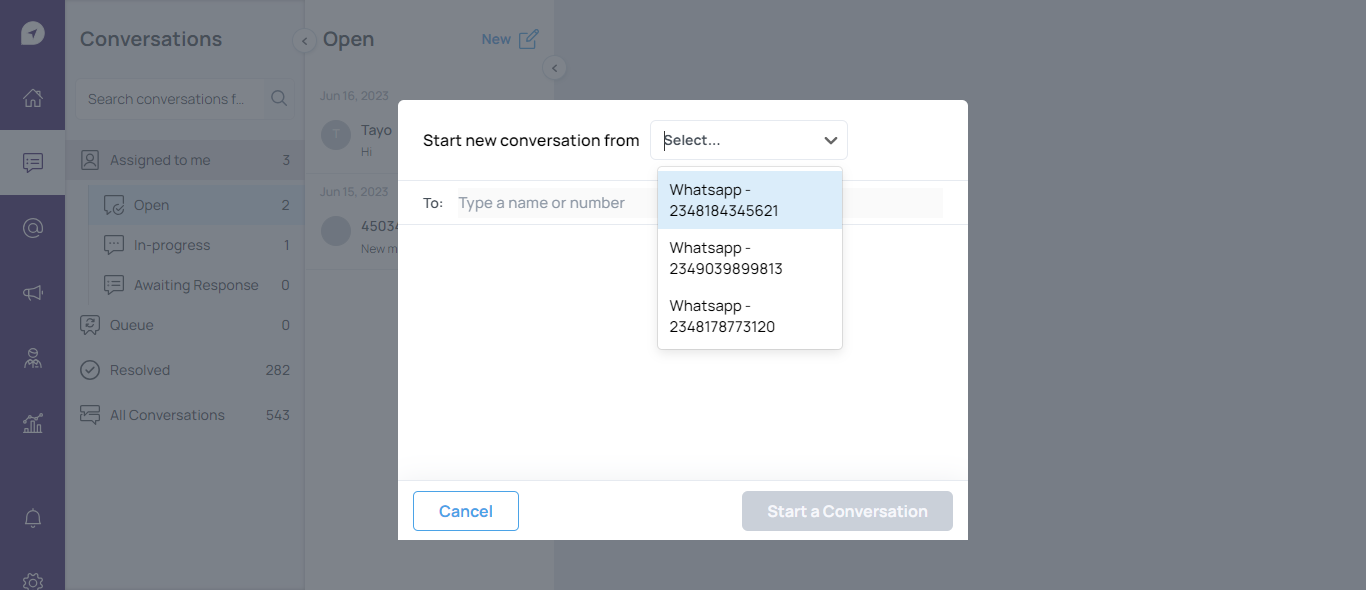
Step 2: Click select to choose the WhatsApp channel you want to send the message from

<figure><img src="https://3509841690-files.gitbook.io/~/files/v0/b/gitbook-x-prod.appspot.com/o/spaces%2FWlKwbhiQmQ3D9zFOVWlI%2Fuploads%2F2mbYKQLwgWqCydEndbpY%2Fscreenbud-78e512ce-2d05-42e1-9e1b-f8b0b1369d64.png?alt=media&amp;token=cb6342a6-c313-4956-9213-f99f0d56216e" alt=""><figcaption></figcaption></figure>

Step 3: In the space provided, type in either the customer's name or number then click start a conversation. If the number is valid, a chat box will open

<figure><img src="https://3509841690-files.gitbook.io/~/files/v0/b/gitbook-x-prod.appspot.com/o/spaces%2FWlKwbhiQmQ3D9zFOVWlI%2Fuploads%2FjA1u6w6ORxqJHKMdSXQf%2Fscreenbud-7c5e9eef-ba3d-4b42-af51-a7b73c4f53fc.png?alt=media&amp;token=fd1a6121-77b5-4c88-a1c1-e824482a3dcc" alt=""><figcaption></figcaption></figure>

<figure><img src="https://3509841690-files.gitbook.io/~/files/v0/b/gitbook-x-prod.appspot.com/o/spaces%2FWlKwbhiQmQ3D9zFOVWlI%2Fuploads%2F2WLXmC8nTU2UABE63Kdz%2Fscreenbud-78a7d133-cc50-42c4-a493-4e8d0c77fccc.png?alt=media&amp;token=71fbf0db-f696-41a4-9b88-66622e45ec79" alt=""><figcaption></figcaption></figure>

Step 4: Click select a template message at the bottom of the page. Click please select and pick from the list of template messages and click send message

<figure><img src="https://3509841690-files.gitbook.io/~/files/v0/b/gitbook-x-prod.appspot.com/o/spaces%2FWlKwbhiQmQ3D9zFOVWlI%2Fuploads%2FlJZ4TXHQwZcSqpTVRavq%2Fscreenbud-80e982e7-313c-45ed-b91f-89567e0ce642.png?alt=media&amp;token=60b81f3a-6c8c-4135-82a2-8c201274d0bf" alt=""><figcaption></figcaption></figure>

<figure><img src="https://3509841690-files.gitbook.io/~/files/v0/b/gitbook-x-prod.appspot.com/o/spaces%2FWlKwbhiQmQ3D9zFOVWlI%2Fuploads%2FuUj9K9wF3yJa3c9q7zK9%2Fscreenbud-06afc9c4-894b-41c8-896c-9e026d2ab59a.png?alt=media&amp;token=45f18a44-22f4-4520-be41-8601a2f7cc04" alt=""><figcaption></figcaption></figure>

Step 5: Wait for the customer to respond and continue the conversation as needed. The conversation window will be open for 24hours. After which, you will need to use a template message to continue chatting

**Tagging Conversations**

Tags allow you label conversations. To create tags;

Step 1: Navigate to settings > tags and click **new tag**&#x20;

<figure><img src="https://3509841690-files.gitbook.io/~/files/v0/b/gitbook-x-prod.appspot.com/o/spaces%2FWlKwbhiQmQ3D9zFOVWlI%2Fuploads%2Fy2UHQvaCibQ1ApCUdONK%2Fscreenbud-80e01569-86ad-4eb8-b4ab-acabf944903f.png?alt=media&amp;token=10a48bda-baf0-4e7b-af8a-69b00a45e431" alt=""><figcaption></figcaption></figure>

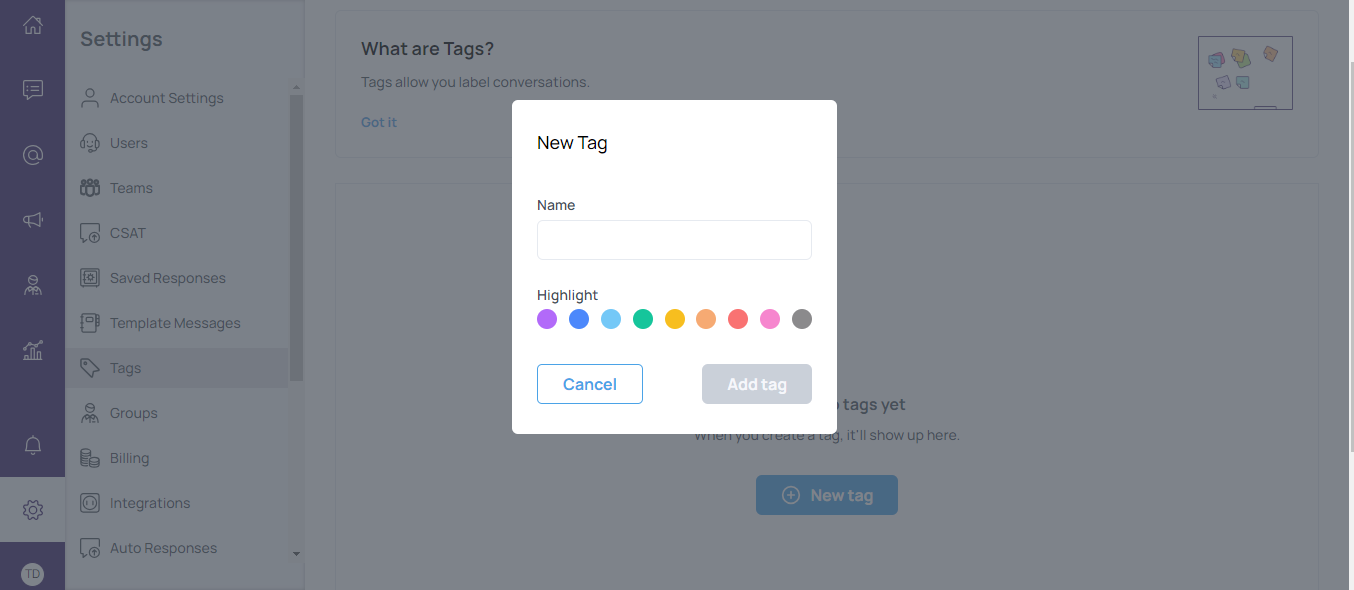
Step 2: Enter the name of the Tag you wish to create and select a highlight color and click **add tag**.

<figure><img src="https://3509841690-files.gitbook.io/~/files/v0/b/gitbook-x-prod.appspot.com/o/spaces%2FWlKwbhiQmQ3D9zFOVWlI%2Fuploads%2F2bBcldeeL6vXpaFmXRRQ%2Fscreenbud-4fc847ef-eb66-497f-aeb7-cf5185533f5d.png?alt=media&amp;token=8fc58e8e-3e45-4c29-bbe2-8da0ab69e367" alt=""><figcaption></figcaption></figure>

Step 3: Navigate to conversations. Pick a conversation either from queue or from the ones already assigned to you and the chat box will open

Step 4: Hover over the icons on the top left corner of the chat box and select tag. A small drop down will appear.

<figure><img src="https://3509841690-files.gitbook.io/~/files/v0/b/gitbook-x-prod.appspot.com/o/spaces%2FWlKwbhiQmQ3D9zFOVWlI%2Fuploads%2F91vaLsccEjraiPjcf5zs%2Fscreenbud-c6d23382-58c9-4ecd-a06d-138e177f2632.png?alt=media&amp;token=7416bac4-d6e3-4c4e-8692-0cc18e2a3890" alt=""><figcaption></figcaption></figure>

Step 5: Click on Add tag, select the appropriate tag for the conversation from the list of tags. You can have multiple tags on one conversation.

<figure><img src="https://3509841690-files.gitbook.io/~/files/v0/b/gitbook-x-prod.appspot.com/o/spaces%2FWlKwbhiQmQ3D9zFOVWlI%2Fuploads%2FWugP6KQ4aPIjTnJD7COW%2Fscreenbud-6f3345c9-66d7-4a9f-bc46-4fd5a30f954a.png?alt=media&amp;token=62474cf8-4ee2-4675-88f9-52b93f58a321" alt=""><figcaption></figcaption></figure>

**Sending Multimedia**

You can send multimedia (images, videos and documents) through any channel on the OneRoute platform. Here's how:

Step 1:  Navigate to the Conversations Module&#x20;

Step 2: Select a conversation either from queue or from the Assigned to me tab.

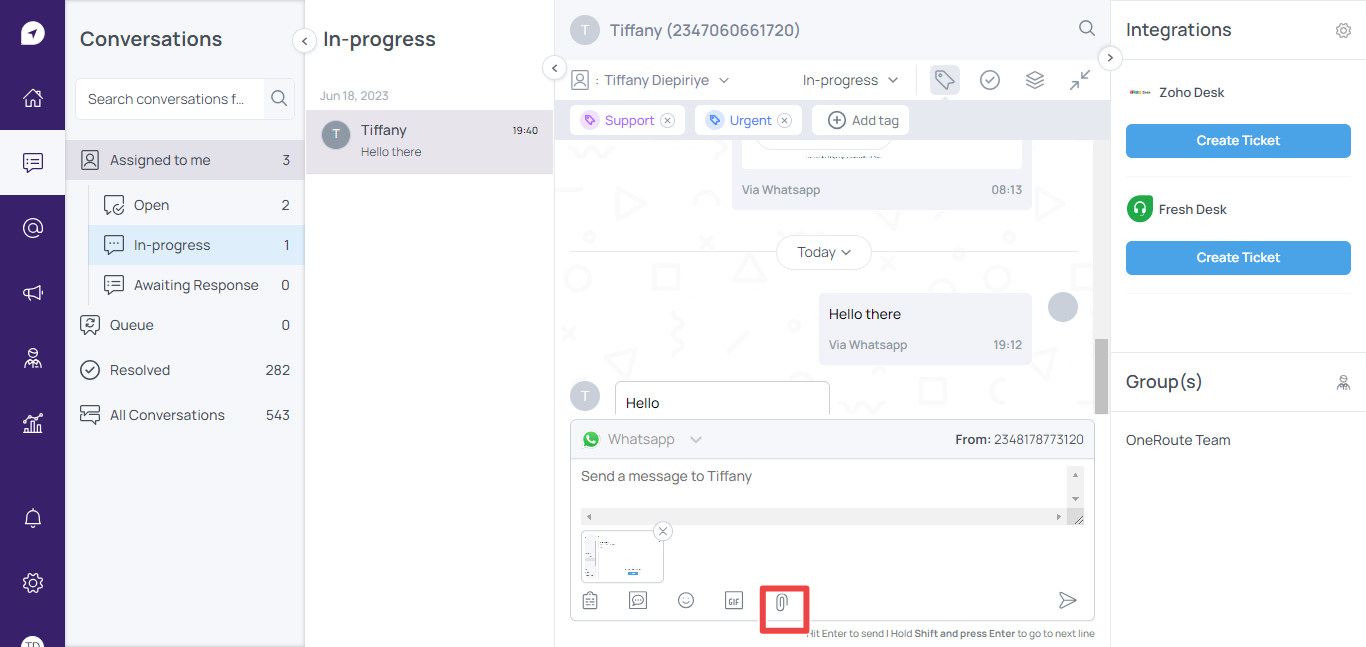
Step 3: At the bottom of the chat box, there are five icons. Click on the attachment icon and select the media you want and click open to attach

<figure><img src="https://3509841690-files.gitbook.io/~/files/v0/b/gitbook-x-prod.appspot.com/o/spaces%2FWlKwbhiQmQ3D9zFOVWlI%2Fuploads%2F5wMkuwbsj3v7jsjeHPtZ%2Fscreenbud-63c22012-2b05-4049-971a-92e3922a4cb4.png?alt=media&amp;token=1ed475a9-8fd4-47fc-befc-8234602ce7da" alt=""><figcaption></figcaption></figure>

Step 5: Type an accompanying message. If none, press enter to send.

**Search and Filter Through Conversations**

To filter through conversations;

Step 1: Navigate to the Conversations Module and click on the search bar. You will be given a drop down of different filter parameters.

<figure><img src="https://3509841690-files.gitbook.io/~/files/v0/b/gitbook-x-prod.appspot.com/o/spaces%2FWlKwbhiQmQ3D9zFOVWlI%2Fuploads%2FBPmuDpnCEqG8ikSPZH2D%2Fscreenbud-64f1b602-eddd-433e-9aba-0d196e86bf00.png?alt=media&amp;token=8ae2c780-fc8d-4a70-9557-6f8d36dd8d14" alt=""><figcaption></figcaption></figure>

Step 2: Select and filter as required.

Step 3: To close the search tab, click the X at the right end of the search bar

**Broadcasts**

Broadcasts allows you send messages to multiple customers at once. Broadcasts are sent either via WhatsApp, Email or SMS.

**Sending Broadcast Messages**

Step 1: Navigate to the Broadcast Module and click New Broadcast
<figure><img src="https://3509841690-files.gitbook.io/~/files/v0/b/gitbook-x-prod.appspot.com/o/spaces%2FWlKwbhiQmQ3D9zFOVWlI%2Fuploads%2Fa4gVKz8j3aXRqZmfl9ZJ%2Fscreenbud-a13ea4b1-8c6f-4c90-9ec8-632a91592940%20(1).png?alt=media&amp;token=37d89f77-279b-4320-9473-365e201ae171" alt=""><figcaption></figcaption></figure>

Step 2: Type in the name of the broadcast and select the channel you want to send this broadcast from and click Proceed to compose message

<figure><img src="https://3509841690-files.gitbook.io/~/files/v0/b/gitbook-x-prod.appspot.com/o/spaces%2FWlKwbhiQmQ3D9zFOVWlI%2Fuploads%2FcdHYrpVFfBrSvJrAtRHZ%2Fscreenbud-9e9e25fb-9782-49ad-b128-e42bb395331c.png?alt=media&amp;token=c76707be-316f-4062-b82e-c74ba0c69f21" alt=""><figcaption></figcaption></figure>

Step 3: Type in your broadcast subject, then message. Feel free to use any of the tags provided at the bottom of the page to personalize your message then click proceed to select recipient

<figure><img src="https://3509841690-files.gitbook.io/~/files/v0/b/gitbook-x-prod.appspot.com/o/spaces%2FWlKwbhiQmQ3D9zFOVWlI%2Fuploads%2Fykv7Y2r3JRSszPpMG1GT%2Fscreenbud-9e9e25fb-9782-49ad-b128-e42bb395331c.png?alt=media&amp;token=c7583b72-ad93-4aeb-9b12-b9f84293d681" alt=""><figcaption></figcaption></figure>

Step 4: Select the recipients from the list of customers. If you have a group created, you can select them in the target audience tab then click proceed to confirm

<figure><img src="https://3509841690-files.gitbook.io/~/files/v0/b/gitbook-x-prod.appspot.com/o/spaces%2FWlKwbhiQmQ3D9zFOVWlI%2Fuploads%2Fh7beL97g8Go8FnpVruuT%2Fscreenbud-82f60945-1067-41fc-bc8f-7311aabfafc0.png?alt=media&amp;token=8ae52111-7d86-4be5-bc4e-7f3b629a0902" alt=""><figcaption></figcaption></figure>

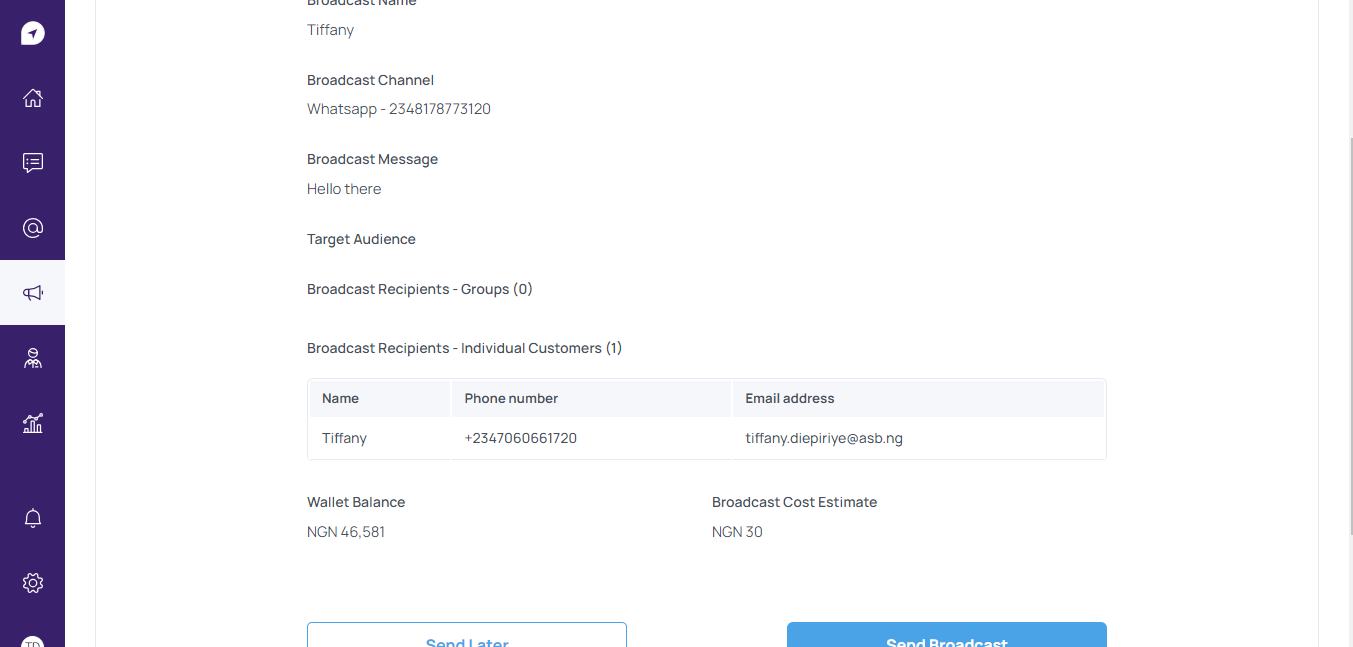
Step 5: Review the broadcast details and either send later or click send broadcast

<figure><img src="https://3509841690-files.gitbook.io/~/files/v0/b/gitbook-x-prod.appspot.com/o/spaces%2FWlKwbhiQmQ3D9zFOVWlI%2Fuploads%2FzzOYA3JZgdJe135d7wQo%2Fscreenbud-b8dd0c8c-e873-4c2b-8ef5-4b5244c84851.png?alt=media&amp;token=7df2eddb-52c2-4816-8a34-5c30b1e2bf81" alt=""><figcaption></figcaption></figure>


# Customers

Learn how to navigate the Customers Module

Here, you can add, edit and delete customer contacts. There are two ways to add customer contacts to your account.

**Adding customers**

Step 1: Navigate to the customers module and click on Add Customer

<figure><img src="https://3509841690-files.gitbook.io/~/files/v0/b/gitbook-x-prod.appspot.com/o/spaces%2FWlKwbhiQmQ3D9zFOVWlI%2Fuploads%2FEOQKS3qvXpgtwSOZ49G8%2Fscreenbud-9d82310b-4681-4b3a-b9b3-2b6f18468463.png?alt=media&amp;token=ecf5499c-3dac-408f-9615-e901b5be0e44" alt=""><figcaption></figcaption></figure>

Step 2: Fill in the customer information and click Add Customer to finish

<figure><img src="https://3509841690-files.gitbook.io/~/files/v0/b/gitbook-x-prod.appspot.com/o/spaces%2FWlKwbhiQmQ3D9zFOVWlI%2Fuploads%2Frtarl29Oj0A62HinyDhm%2Fscreenbud-04801255-1b98-4012-af7d-8ec8a18a8543.png?alt=media&amp;token=f3e76863-08c0-4dcc-b930-8bdce7529333" alt=""><figcaption></figcaption></figure>

**Importing Customers**&#x20;

Step 1: Navigate to the customers module and click on **Import Customers**

Step 2: Click on **download csv** on the pop up screen

<figure><img src="https://3509841690-files.gitbook.io/~/files/v0/b/gitbook-x-prod.appspot.com/o/spaces%2FWlKwbhiQmQ3D9zFOVWlI%2Fuploads%2Fm8s4xhRhxyH4cEh94sxc%2Fscreenbud-f7b5fb42-517a-4b97-82cb-a010623cb5a9.png?alt=media&amp;token=c9a1e6d8-c207-4fb9-b8e0-431571d94730" alt=""><figcaption></figcaption></figure>

Step 3: Populate the csv file. Please note, no changes are to be made to the csv file.

<figure><img src="https://3509841690-files.gitbook.io/~/files/v0/b/gitbook-x-prod.appspot.com/o/spaces%2FWlKwbhiQmQ3D9zFOVWlI%2Fuploads%2FhbhnoUHpAsUFkNT33ImC%2Fscreenbud-088c41a6-80ca-46a7-8f18-2e63a2b2f0df.png?alt=media&amp;token=8f2153c5-2fbb-4d43-8c16-311ef02231e2" alt=""><figcaption></figcaption></figure>

Step 4: Return to OneRoute and click Next Step, choose the file and click **Upload CSV**

<figure><img src="https://3509841690-files.gitbook.io/~/files/v0/b/gitbook-x-prod.appspot.com/o/spaces%2FWlKwbhiQmQ3D9zFOVWlI%2Fuploads%2FhTN2uLY5mtWJDffE1gNP%2Fscreenbud-e63fbc82-de2a-4653-b404-24437db66dd2.png?alt=media&amp;token=48ea9c29-9ffe-40a2-850a-e48c4a99b117" alt=""><figcaption></figcaption></figure>

Step 5: On the next screen, you can either put the customers in a group or click Import Customers then click Finish to complete the import.

<figure><img src="https://3509841690-files.gitbook.io/~/files/v0/b/gitbook-x-prod.appspot.com/o/spaces%2FWlKwbhiQmQ3D9zFOVWlI%2Fuploads%2FykEufhnHOK4vnUQEKG09%2Fscreenbud-afc998f0-a05d-4a8c-b2cc-74a52aa08ad0.png?alt=media&amp;token=67362af2-d1a1-487b-b672-a2a19e272262" alt=""><figcaption></figcaption></figure>

<figure><img src="https://3509841690-files.gitbook.io/~/files/v0/b/gitbook-x-prod.appspot.com/o/spaces%2FWlKwbhiQmQ3D9zFOVWlI%2Fuploads%2FBoSJzJlOkeE2ZrbViAqX%2Fscreenbud-3ec01782-a8b5-4cea-841e-9cb333c45cfe.png?alt=media&amp;token=5af5e62e-f1b2-40a9-bde1-45ec8e30e7d7" alt=""><figcaption></figcaption></figure>

**Updating Customer Information**

You can edit and delete your customer information in the Customers Module

Step 1: Navigate to the Customer Module. Click on the three dots beside the customer information and click edit

<figure><img src="https://3509841690-files.gitbook.io/~/files/v0/b/gitbook-x-prod.appspot.com/o/spaces%2FWlKwbhiQmQ3D9zFOVWlI%2Fuploads%2FTe39IlnnG1kyu6XjAf0W%2Fscreenbud-40c6e823-acef-4f6f-88c9-a213d83bdbb0.png?alt=media&amp;token=8f73187d-eca9-40af-b725-c53527802950" alt=""><figcaption></figcaption></figure>

Step 2: A screen with the customer's full information will open. Click on edit and update the information then click save&#x20;

<figure><img src="https://3509841690-files.gitbook.io/~/files/v0/b/gitbook-x-prod.appspot.com/o/spaces%2FWlKwbhiQmQ3D9zFOVWlI%2Fuploads%2Fws8B4sgA3UBaCJEbe7vf%2Fscreenbud-285b17d7-e74c-44c2-8294-4537dd1305fa.png?alt=media&amp;token=a51eac31-417d-4b2f-b5c6-939916de97a9" alt=""><figcaption></figcaption></figure>

**Creating Custom Fields**

Custom fields allow you capture information that isn’t available on the default fields for customer information.

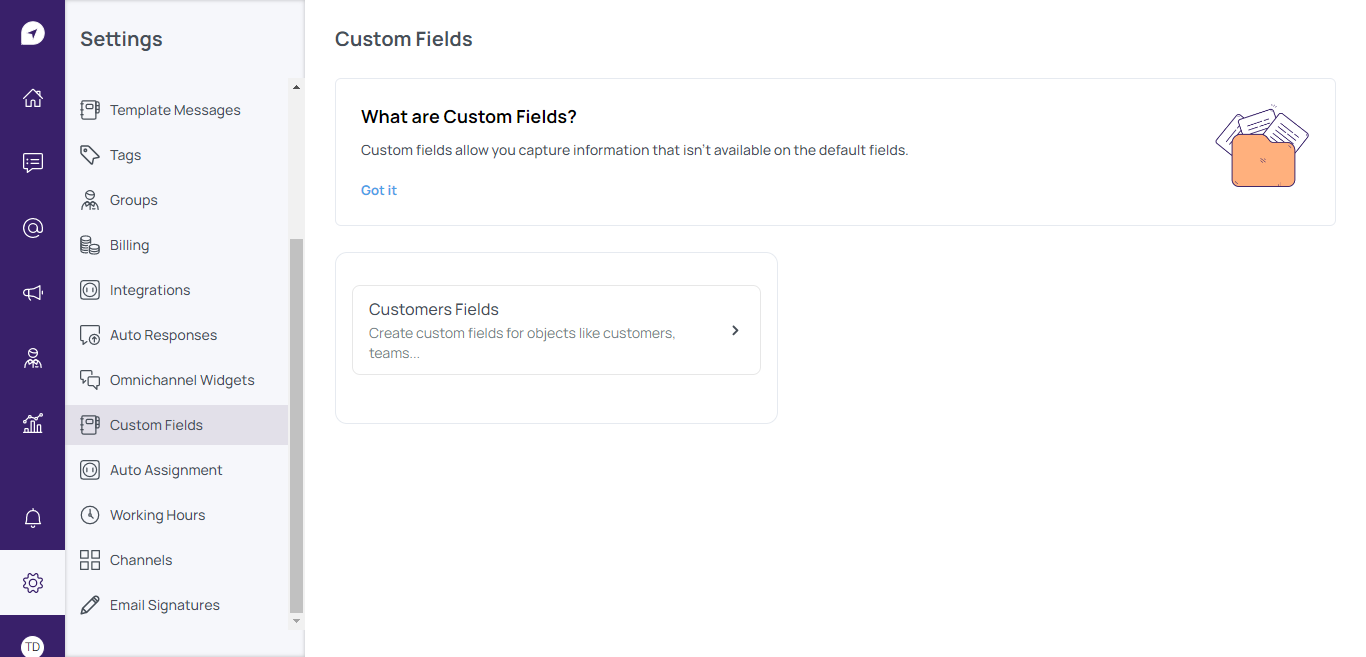
Step 1: Navigate to Settings > Custom Fields

<figure><img src="https://3509841690-files.gitbook.io/~/files/v0/b/gitbook-x-prod.appspot.com/o/spaces%2FWlKwbhiQmQ3D9zFOVWlI%2Fuploads%2FEEsSfhvP70qWgtFc4Oko%2Fscreenbud-4bc13b83-cda4-4a5e-9e25-2356821bfc3c.png?alt=media&amp;token=066eacaa-8a21-47c6-a07e-ef851de3d682" alt=""><figcaption></figcaption></figure>

Step 2: Click Customers Fields then click on Add new field

<figure><img src="https://3509841690-files.gitbook.io/~/files/v0/b/gitbook-x-prod.appspot.com/o/spaces%2FWlKwbhiQmQ3D9zFOVWlI%2Fuploads%2FwrG9jX2gXndPwyTT1N8v%2Fscreenbud-2f068fdb-6fab-44aa-a5cf-117b912eb7f5.png?alt=media&amp;token=09cfc997-6a6d-4436-b129-96aaa88117ee" alt=""><figcaption></figcaption></figure>

Step 3: Input the field name and select the field type and click Add field to save

<figure><img src="https://3509841690-files.gitbook.io/~/files/v0/b/gitbook-x-prod.appspot.com/o/spaces%2FWlKwbhiQmQ3D9zFOVWlI%2Fuploads%2FCRjm4qAREJe1E9klYkZx%2Fscreenbud-45977f83-e8a1-40b1-8ecb-f107777ba8e8.png?alt=media&amp;token=35b158be-9d3d-47de-9464-50bf3311871e" alt=""><figcaption></figcaption></figure>

<figure><img src="https://3509841690-files.gitbook.io/~/files/v0/b/gitbook-x-prod.appspot.com/o/spaces%2FWlKwbhiQmQ3D9zFOVWlI%2Fuploads%2FBhSBx19pnwBg4CC72PZX%2Fscreenbud-67ec270d-03a0-4989-9214-ab50c389c73d.png?alt=media&amp;token=467f3d3f-a319-4445-91bd-1a5168a903d3" alt=""><figcaption></figcaption></figure>

You can delete custom fields anytime by clicking on the trash icon beside the field.

<figure><img src="https://3509841690-files.gitbook.io/~/files/v0/b/gitbook-x-prod.appspot.com/o/spaces%2FWlKwbhiQmQ3D9zFOVWlI%2Fuploads%2FeIWvp4hhYn6tshionl0h%2Fscreenbud-9fff5613-b3a6-464b-895c-b872b4398f51.png?alt=media&amp;token=31806778-67c2-44db-bc47-73bcc7a96528" alt=""><figcaption></figcaption></figure>


# Working Hours

This is where you set your official working hours so your customers can know when you are available or not

Step 1: Navigate to Settings > Working Hours

<figure><img src="https://3509841690-files.gitbook.io/~/files/v0/b/gitbook-x-prod.appspot.com/o/spaces%2FWlKwbhiQmQ3D9zFOVWlI%2Fuploads%2FmyPUE487ohu72XKA2dip%2Fscreenbud-e732b756-66b0-49da-af18-fd9a7be2e18e.png?alt=media&amp;token=5ebc6120-cb76-4965-8d76-0cf4ba765681" alt=""><figcaption></figcaption></figure>

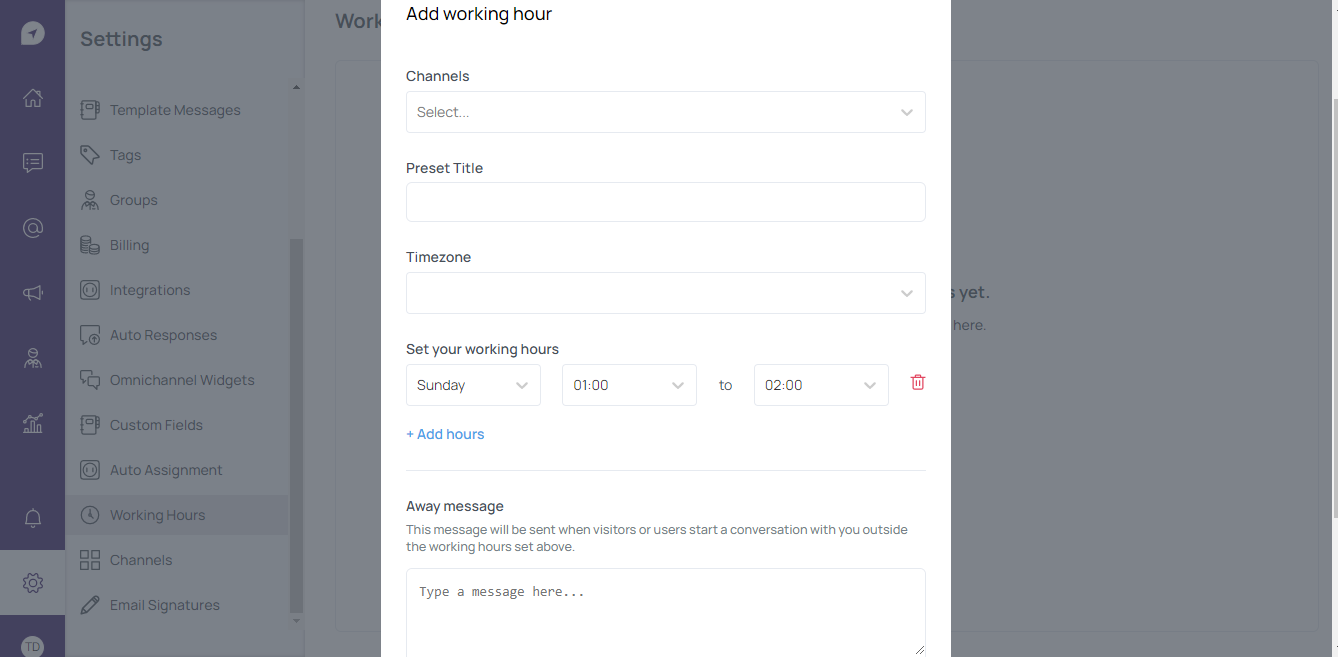
Step 2: Click Add working hour, fill the form with all relevant information, including an away message for when customers message you outside working hours and click Save Preset

<figure><img src="https://3509841690-files.gitbook.io/~/files/v0/b/gitbook-x-prod.appspot.com/o/spaces%2FWlKwbhiQmQ3D9zFOVWlI%2Fuploads%2FWN2UB5qSBKRVM3qq2rcn%2Fscreenbud-fb297eb2-782e-4547-879b-877f4604892e.png?alt=media&amp;token=4bfd0406-6e50-44d0-83f4-48a7afcfdea2" alt=""><figcaption></figcaption></figure>

**end**


# AutoResponses

Autoresponders are messages automagically sent to your customers when they contact you.

Here's how to set it up.

**Step 1:** Navigate to Settings > Autoresponses

<figure><img src="https://3509841690-files.gitbook.io/~/files/v0/b/gitbook-x-prod.appspot.com/o/spaces%2FWlKwbhiQmQ3D9zFOVWlI%2Fuploads%2FU3VDPj5c7ALPVhwoefIO%2Fscreenbud-027cbf36-1b1d-4f25-a666-d97e3d82b2d3.png?alt=media&amp;token=15cd4fe3-f0d4-4f30-9225-edc6e68e80cd" alt=""><figcaption></figcaption></figure>

**Step 2:** Click New auto response, select the channels you want the response on, compose your message and click Add auto response

<figure><img src="https://3509841690-files.gitbook.io/~/files/v0/b/gitbook-x-prod.appspot.com/o/spaces%2FWlKwbhiQmQ3D9zFOVWlI%2Fuploads%2FRlLNehpatLDnYyNTu5RZ%2Fscreenbud-3b5c7291-cdd9-4d9a-a811-0531d5fd44ce.png?alt=media&amp;token=622f2b03-5403-425b-abf2-42812f8b56db" alt=""><figcaption></figcaption></figure>


# Teams

Teams is a group of users that have access to pre-set channels. This helps with grouping members of the same department together.

**Step 1:** Navigate to Settings > Teams and click &#x20;

<figure><img src="https://3509841690-files.gitbook.io/~/files/v0/b/gitbook-x-prod.appspot.com/o/spaces%2FWlKwbhiQmQ3D9zFOVWlI%2Fuploads%2FYjAM3OOGnFqpQIIHRoyV%2Fscreenbud-b8551795-6009-4cec-abbb-c56c01335bbb.png?alt=media&amp;token=088f3749-0a77-4188-9b73-572bd7524266" alt=""><figcaption></figcaption></figure>

**Step 2:** Type in your preferred Team name, select the users and channels for this team and click Add Team

<figure><img src="https://3509841690-files.gitbook.io/~/files/v0/b/gitbook-x-prod.appspot.com/o/spaces%2FWlKwbhiQmQ3D9zFOVWlI%2Fuploads%2F6KCgMg4LKo5a5HasFj4S%2Fscreenbud-ea9c7612-6c58-44ac-82a4-6a88267c32f0.png?alt=media&amp;token=7e8ee238-4986-497c-b8a9-2a2b05232c64" alt=""><figcaption></figcaption></figure>

end